Windows troubleshooting fails when a fix gets applied before the fault is located. Only four layers can break: hardware, firmware, Windows itself, and something you installed. Work out which layer you are in, and the right repair picks itself.
Wasted afternoons all look alike. Someone reinstalls a driver over a memory fault, or runs repair commands at a BIOS setting, or wipes a drive because of one startup program. The triage below takes five minutes and tells you which layer you are in.
The four layers, and why the order matters
| Layer | What lives there | How you recognise it |
|---|---|---|
| Hardware | RAM, the drive, the PSU, the GPU, cooling, cables | The fault survives Safe Mode, or appears before Windows loads |
| Firmware | UEFI settings, Secure Boot, TPM, storage mode, boot order | The PC will not boot or will not upgrade, yet behaves fine once Windows starts |
| Windows itself | System files, services, updates, the user profile | Every account is affected, and it began after an update |
| Something you installed | Apps, antivirus, third-party drivers, startup items | It disappears in Safe Mode or a clean boot |
Faults do not move between layers, but symptoms do. A failing drive produces file corruption that looks exactly like damaged Windows files. An antivirus filter driver produces crashes that look like bad memory. That overlap is why the layer question comes before any command.
The five-minute triage
Five questions separate the four layers. Answer them in order and write the answers down.
What changed recently? Open Settings → Windows Update → Update history, and Settings → Apps → Installed apps sorted by install date. A fault that started on a specific day usually has a cause from that day. This one question resolves more Windows problems than every repair command combined.
Does it happen in Safe Mode? Hold Shift, click Start → Power → Restart, then choose Troubleshoot → Advanced options → Startup Settings → Restart and press 4. Microsoft describes Safe Mode as starting Windows in a basic state with a limited set of files and drivers, which is what makes it a test rather than a repair.
Does it happen for a brand new user account? Create a local account under Settings → Accounts → Other users and sign in. A fault that vanishes belongs to your profile. A fault that follows you is system-wide.
Does it happen during boot, or after login? Before the Windows logo is firmware and storage. Between the logo and the login screen is drivers and system files. After login is the shell, your startup programs and your profile. That timing alone eliminates two layers.
Is there a pattern in the logs? Press Win + R and run eventvwr.msc, then open Windows Logs → System and use Filter Current Log for Critical and Error. Reliability Monitor plots the same data against a calendar:
perfmon /relA column of red on the day the trouble started is the shortest route to a cause.
Symptom to guide
Find your symptom, note the layer, then go where the last column points.
| Symptom | Most likely layer | Where to go |
|---|---|---|
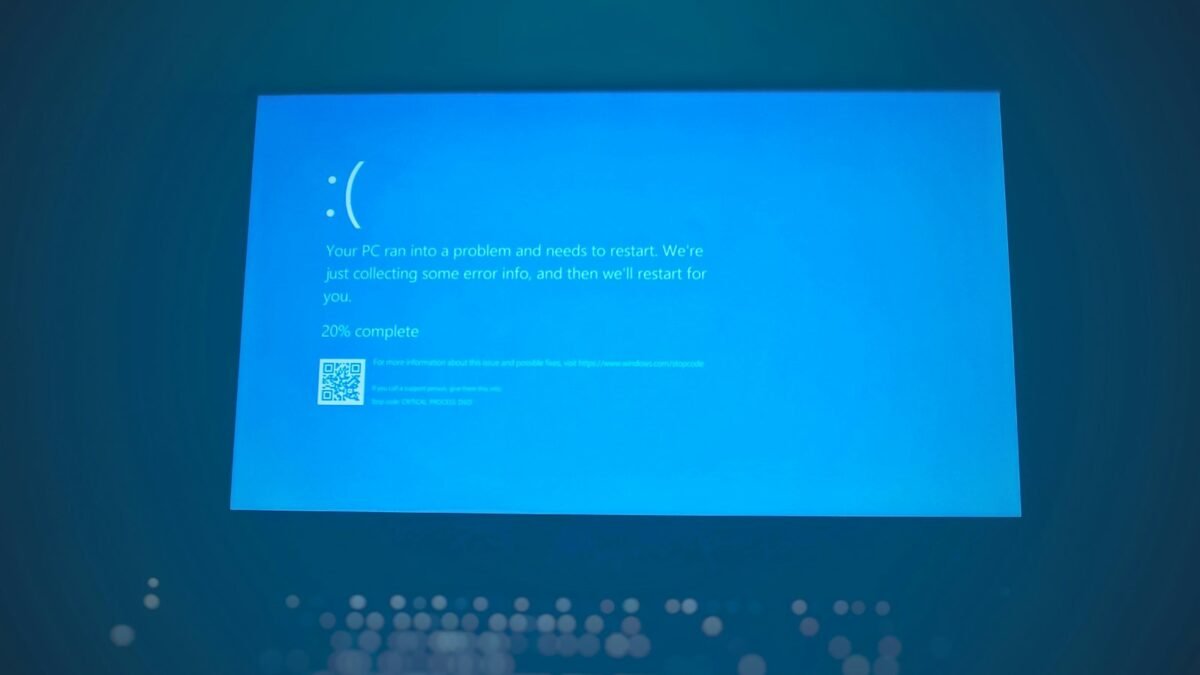
| Blue screen with a capitalised stop code | Windows or a driver | The stop code reference, then the page for your code |
| Desktop takes minutes to become usable | Something you installed | Startup apps and services, then drive health |
| No audio, or the playback device has vanished | Windows | The audio driver and the Windows Audio service |
| Start menu, search or taskbar does nothing | Windows (the shell) | Restart Explorer, then test a new profile |
| Windows 11 upgrade refuses to install | Firmware | Windows 11 system requirements and msinfo32 |
| Secure Boot State reads Unsupported | Firmware | BIOS mode and partition style, not Windows |
| Automatic Repair loop, or no boot at all | Windows or storage | Recovery environment, Startup Repair, drive health |
| Random freezes, no blue screen, dead cursor | Hardware | Memory test, temperatures, power supply |
| Anything that still happens in Safe Mode | Hardware | mdsched, chkdsk, SMART data |
| One application misbehaves, nothing else does | Something you installed | Reinstall that application |
| Everything broke immediately after an update | Windows | Uninstall the update from Update history |
| Fault appears in one account only | Windows (user profile) | A new user account |
| USB devices dropping out or ports dead | Hardware or firmware | Another port, chipset driver, firmware update |
| Wi-Fi drops after sleep and will not reconnect | Windows (driver power settings) | Network adapter properties, Power Management tab |
| Loud fans and throttling under load | Hardware | Dust, thermal paste, fan curves |
Several of those rows are worth reading backwards. A slow startup is nearly always startup programs or a mechanical hard drive rather than a broken Windows install, and Windows records the boot timings itself. When sound is not working, the speakers are rarely at fault: the output device selection or the driver usually is. If the Start menu is not responding, the taskbar and File Explorer normally stop with it, because all three are the same process.
Firmware symptoms look the most alarming and are usually the least serious. When Secure Boot shows as Unsupported in System Information, it generally means the drive still uses the old MBR partition style, so Windows cannot see a feature the board actually has.
Fix 1: Safe Mode, which is a test before it is a repair
Safe Mode loads Microsoft’s own minimal driver set and no third-party startup items. That is its whole value. If the crash, freeze or error stops, the cause is something you installed, and you can hunt it down inside a working desktop. If it continues, you have ruled out almost every third-party component in one restart, which points at hardware or at Windows itself.
The routes into Safe Mode differ depending on whether Windows still reaches the desktop, so pick the one matching your situation rather than the first one you find.
Fix 2: DISM, then SFC, in that order
These two repair damaged Windows system files. Open Terminal or Command Prompt as administrator:
DISM /Online /Cleanup-Image /RestoreHealthsfc /scannowThe sequence is not a stylistic preference. Microsoft states that DISM supplies the files required to repair corrupted files and should be run before the System File Checker. Running sfc /scannow on its own is the single most repeated piece of Windows folklore, and when the component store is damaged it reports files it could not fix and stops. Restart after both finish.
What this rules out: damaged system files. What it cannot touch: drivers, hardware, firmware settings or anything you installed.
Fix 3: A clean boot
Safe Mode is a blunt instrument. A clean boot is the scalpel, because it lets you re-enable software in batches until the fault returns. Microsoft’s method is to open System Configuration, and on the Services tab select Hide all Microsoft services, then Disable all, before disabling each enabled startup item in Task Manager.
msconfigRe-enable half the services, restart, and see which half brings the problem back. Repeat on that half. Eight restarts identifies a culprit out of a hundred, and the machine loses some functionality temporarily while you work.
Fix 4: A new user profile
Create a fresh local account, sign in, and try to reproduce the fault. This is the fastest way to separate a corrupted profile from a broken system, and it is badly underused. Search behaving oddly, settings that will not stick, Store apps that will not launch and a Start menu that only fails for you are all classic profile faults. Nothing needs migrating to run the test. If the new account is clean, the repair is a profile move rather than a reinstall.
Three habits that waste an afternoon
Reading a stop code as a diagnosis. The code names the class of failure and the component that detected it, not the component that caused it. Microsoft’s bug check code reference catalogues every code Windows can raise, and the minidump is what names the faulting driver.
Driver updater utilities. They bundle generic packages and frequently install older versions than the ones already present. Get graphics drivers from Nvidia, AMD or Intel, and everything else from your PC or motherboard manufacturer’s page for your exact model.
Registry cleaners. No credible evidence supports them as a performance fix, and they carry a genuine risk of removing entries something still needs.
When to stop troubleshooting and reinstall
Reinstalling is the correct answer to a specific set of conditions, not a general act of despair.
| Situation | Reinstall? |
|---|---|
| DISM and SFC both fail or report unrepairable damage | Yes |
| The fault survives Safe Mode, a clean boot and a new profile | Yes, once hardware is cleared |
| Windows will not boot and Startup Repair has failed twice | Yes |
| Suspected malware with persistence you cannot remove | Yes |
| The fault is absent in Safe Mode | No, you have a culprit to find |
| Memory test errors, SMART warnings, crashes inside the BIOS | No, that is hardware and a fresh install will crash too |
Test the memory with mdsched and check the drive before you commit, because a reinstall onto failing hardware fails in exactly the same way a few days later. When the criteria genuinely fit, a repair install that keeps your files is usually enough, and the options to reinstall Windows 10 range from that up to a full wipe. Back up first regardless of which one you choose.
Common questions
How do I know whether a Windows problem is hardware or software?
Boot into Safe Mode and try to reproduce the fault. Safe Mode loads a minimal Microsoft driver set, so a problem that disappears there is software or a driver. A problem that survives it, or that appears in the BIOS before Windows loads, points at hardware.
Should I run sfc /scannow or DISM first?
DISM first, then SFC. Microsoft’s guidance is explicit: DISM repairs the component store that supplies replacement files, and the System File Checker then draws on that store. Run SFC alone against a damaged store and it reports files it could not repair, which is where most people give up.
What is the difference between Safe Mode and a clean boot?
Safe Mode starts Windows with a limited set of Microsoft files and drivers, so it proves whether third-party software is involved. A clean boot starts a normal Windows with your non-Microsoft services and startup items disabled, letting you re-enable them in batches until the culprit reveals itself.
Does creating a new user account fix Windows problems?
It fixes problems that live in your profile: broken search, settings that will not save, Store apps that refuse to open, a Start menu that fails for one account only. It fixes nothing system-wide. Use it as a five-minute test before assuming Windows itself is damaged.
Where does Windows record what went wrong?
Two places. Event Viewer, opened with eventvwr.msc, holds Critical and Error entries under Windows Logs → System with timestamps. Reliability Monitor, opened with perfmon /rel, plots the same failures on a calendar, which makes it far quicker to spot the day everything changed.
Diagnosis is one question repeated until only one layer is left standing: does it still happen if I remove this variable? Safe Mode removes third-party software, a new account removes your profile, and the BIOS removes Windows entirely.