A Start button that won’t respond is almost always a crashed Windows Explorer process, and restarting it from Task Manager fixes it in about ten seconds. When that doesn’t hold, the Start menu’s app package is damaged and needs re-registering.
You click it and nothing happens. Search does nothing. Sometimes the taskbar stops responding too, which is the same fault showing up in a second place. The infuriating part is that the thing you’d normally use to fix a problem is the thing that’s broken.
Fix 1: Restart Windows Explorer
The Start menu, taskbar and File Explorer are all part of one process. When it hangs, all three stop responding. Restarting it fixes this more often than anything else on this page.
- Press
Ctrl + Shift + Escto open Task Manager - Find Windows Explorer in the Processes list
- Right-click it → Restart
Your screen will flash and the taskbar will disappear for a second. That’s normal.
If Task Manager won’t open, press Ctrl + Alt + Del and choose it from the menu.
From a command line instead: press Win + R (if that still works), type cmd, and run:
taskkill /f /im explorer.exe
start explorer.exe
Fix 2: Sign out and back in
Less disruptive than a restart, and it rebuilds your user session.
Press Ctrl + Alt + Del → Sign out. Log back in and test.
Fix 3: Re-register the Start menu
If restarting Explorer works only temporarily, the Start menu’s underlying app package is damaged.
Open PowerShell as administrator (right-click Start, if that still works, or press Ctrl + Shift + Esc, then Run new task, type powershell, and tick Create this task with administrative privileges).
Run:
Get-AppXPackage -AllUsers | Foreach {Add-AppxPackage -DisableDevelopmentMode -Register "$($_.InstallLocation)\AppXManifest.xml"}It takes a minute and will throw red error text about packages it can’t re-register. That’s expected, let it finish, then restart.
For Windows 11 specifically, this narrower version is often enough and is less disruptive:
Get-AppxPackage Microsoft.Windows.StartMenuExperienceHost | Foreach {Add-AppxPackage -DisableDevelopmentMode -Register "$($_.InstallLocation)\AppXManifest.xml"}Fix 4: Repair system files
If Windows components are damaged, the Start menu is often the first visible symptom. Open Terminal or Command Prompt as administrator and run these in order:
DISM /Online /Cleanup-Image /RestoreHealthsfc /scannowThe order matters. DISM repairs the component store that SFC draws replacement files from, and Microsoft’s instruction is to run DISM before the System File Checker for exactly that reason. Running SFC alone frequently reports problems it “could not fix,” and this is why. Of the DISM switches, only /RestoreHealth repairs the image: /ScanHealth and /CheckHealth only report what they find. Restart when both finish.
This pair is the general repair for damaged system files rather than a Start menu trick, which is why the same two commands turn up in the fix list for sound not working on Windows.
Fix 5: Check for a corrupted user profile
Test whether the problem follows your account or belongs to the machine.
- Settings → Accounts → Other users → Add account
- Choose I don’t have this person’s sign-in information → Add a user without a Microsoft account
- Create a local account, log into it, and test the Start menu
If it works in the new account, your profile is damaged. Copying your files across to the new profile is the practical fix, profile repair rarely holds.
Fix 6: Rebuild the search index
If Start opens but typing finds nothing:
- Settings → Privacy & security → Searching Windows
- Scroll down, click Advanced indexing options
- Click Advanced → Rebuild
Rebuilding takes anywhere from minutes to hours depending on how much is on your drive. Search will be incomplete while it runs.
Also check the Windows Search service: Win + R → services.msc → find it → make sure it’s Running and set to Automatic (Delayed Start).
Fix 7: Uninstall the recent update
If it broke the day an update installed:
- Settings → Windows Update → Update history
- Scroll down → Uninstall updates
- Remove the most recent one
- Restart
Fix 8: Create a new local admin account from Command Prompt
When nothing in the interface responds, you can build a working account from a command line. Open Command Prompt as administrator (Task Manager → Run new task → cmd with admin privileges):
net user tempadmin Password123 /add
net localgroup administrators tempadmin /add
Sign out, log into tempadmin, and you’ll have a working desktop to fix things from. Delete the account afterwards with net user tempadmin /delete.
When it’s more than the Start menu: blue screens and error codes
If the Start menu is one symptom among several, crashes, freezes, restarts, you’re dealing with something deeper.
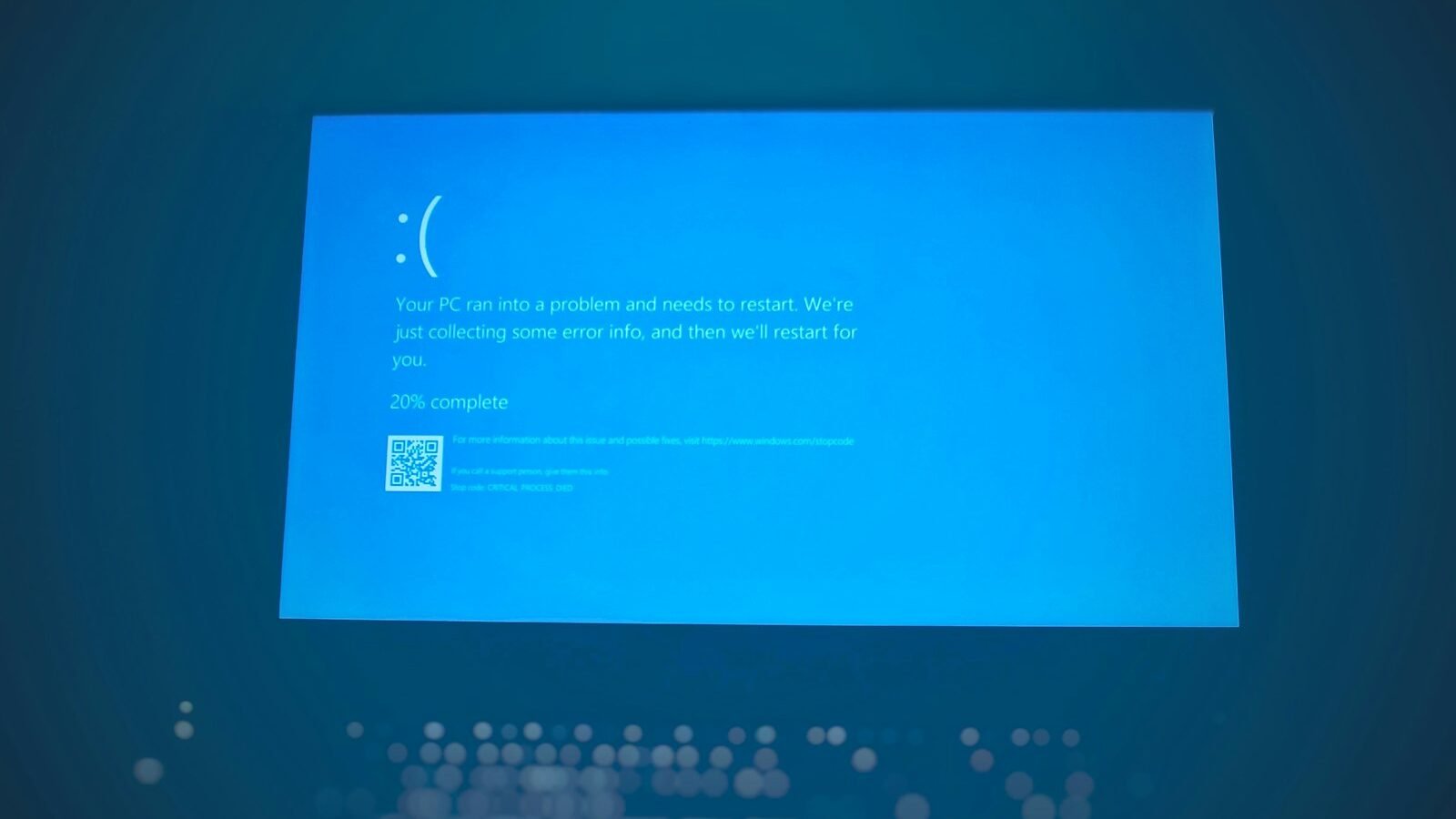
Reading a blue screen
Modern blue screens show a stop code in text near the bottom. That’s the useful part; the QR code just links to a generic Microsoft page. Every stop code maps to a numbered bug check, and Microsoft publishes the full reference of code names and their hex values if yours isn’t in the table below.
Common ones and what they usually mean:
| Stop code | Usual cause |
|---|---|
CRITICAL_PROCESS_DIED | Corrupted system files, or a bad driver |
IRQL_NOT_LESS_OR_EQUAL | Driver problem — often network or graphics |
PAGE_FAULT_IN_NONPAGED_AREA | Faulty RAM, or a driver accessing bad memory |
SYSTEM_SERVICE_EXCEPTION | Driver, frequently graphics |
VIDEO_TDR_FAILURE | Graphics driver or overheating GPU |
KERNEL_SECURITY_CHECK_FAILURE | Driver, RAM, or disk corruption |
INACCESSIBLE_BOOT_DEVICE | Storage driver, or a failing drive |
MEMORY_MANAGEMENT | Almost always RAM |
DPC_WATCHDOG_VIOLATION | Storage driver, often an old SSD firmware |
WHEA_UNCORRECTABLE_ERROR | Hardware fault — CPU, RAM or power |
Note the pattern: most blue screens are drivers, and most of the rest are RAM or storage. Microsoft’s own root-cause analysis of crashes puts third-party driver code behind roughly 70% of stop errors, with hardware faults accounting for another 10%.
Finding out which driver
If the stop code mentions a .sys file, that’s your answer, search the filename to identify the device.
If it doesn’t, use Event Viewer:
Win + R→eventvwr.msc- Windows Logs → System
- Click Filter Current Log, tick Error and Critical
- Look at entries from the time of the crash
For a proper reading of the crash dump, BlueScreenView (free, from NirSoft) parses the minidump files in C:\Windows\Minidump and names the driver directly. It’s the fastest route to an answer.
Fixes by cause
Driver problems (most cases)
- Update graphics drivers from the vendor, Nvidia App, AMD Adrenalin, Intel DSA, not Windows Update
- If it started after a driver update, roll back: Device Manager → Properties → Driver tab → Roll Back Driver
- Update chipset and storage drivers from your motherboard or laptop manufacturer
RAM problems
Run Windows Memory Diagnostic: Win + R → mdsched.exe → restart and test.
For a thorough test, use MemTest86 from a USB drive and let it run several passes. Any error at all means a bad stick. Test one stick at a time to identify which.
Storage problems
chkdsk C: /f /rThen check the drive’s SMART health with CrystalDiskInfo. Anything other than “Good” means back up now and replace the drive.
Overheating
Install HWMonitor and watch temperatures under load. Sustained CPU temperatures above 90°C or GPU above 85°C cause crashes. Clean the dust out and check the fans are turning.
Overclocking
If you’ve overclocked anything, CPU, GPU, or RAM via XMP/EXPO, set it back to default and see whether the crashes stop. Unstable memory timings are a very common cause of random blue screens that seem to have no pattern.
If Windows won’t boot at all
Force the recovery menu: power on, and as soon as you see the Windows logo, hold the power button for 10 seconds to force it off. Do that three times. On the third boot Windows loads Automatic Repair.
From there: Advanced options → Startup Settings → Restart → press 4 for Safe Mode. Then work through the fixes above from a working desktop. If the recovery menu never appears, the other ways to boot into Safe Mode are worth trying before anything drastic.
Common questions
Why did my Start button stop working after an update?
Windows feature updates sometimes leave the Start menu’s app package in a broken state. Re-registering that package through PowerShell resolves most cases, and a restart of Windows Explorer is worth trying first. If neither works, uninstalling the update from Settings, Windows Update, Update history is the next step.
Is restarting Windows Explorer safe?
Yes. Restarting Windows Explorer closes and reopens the desktop shell, which is the taskbar, the Start menu and File Explorer windows. Running applications and unsaved documents in other programs are untouched. Save anything open in a File Explorer window first, then restart it from Task Manager.
How many blue screens are too many?
One blue screen after a driver install is worth investigating but not alarming. One a week means something is genuinely wrong and needs diagnosing. Daily crashes usually point at failing RAM or a dying drive, so back up your files before troubleshooting any further.
Can a blue screen damage my PC?
A blue screen does not damage hardware by itself. The crash halts Windows to prevent worse harm. It can corrupt files that were being written at the moment it happened, which is why repeated crashes eventually break Windows itself and turn one fault into several.
What if the Start menu works but the taskbar is frozen?
The taskbar and the Start menu run inside the same Windows Explorer process, so restarting Explorer from Task Manager fixes both. If the freeze keeps returning, a shell extension installed by third-party software is usually responsible, and ShellExView from NirSoft can disable non-Microsoft extensions in batches to find it.
Work in this order: restart Explorer, then re-register the Start menu, then DISM and SFC. Those three cover the large majority of cases. Only move to profile and update fixes if all three fail, and if you’re also seeing blue screens, stop treating it as a Start menu problem and go straight to the driver and RAM checks.