
SYSTEM_SERVICE_EXCEPTION is bug check 0x0000003B, and it means an exception happened while code was crossing from non-privileged into privileged execution. In practice that is a driver: graphics first, then webcam, virtualisation and third-party antivirus. Read the minidump to name it.
What the stop code actually tells you
Microsoft’s reference for bug check 0x3B describes it as an exception raised while executing a routine that transitions from non-privileged code to privileged code, typically a null pointer dereference or an access to a random incorrect address. Memory freed too early and corrupted data structures both produce it.
Notice what that does not say. It does not name a component. 0x3B describes the shape of the failure, not the culprit, which is why two PCs showing the same code often need different fixes. Microsoft’s own crash analysis attributes 70% of stop errors to third-party driver code, with hardware a distant second at 10%. Know that ratio before you start changing settings.
The bug check carries four parameters:
| Parameter | Meaning |
|---|---|
| 1 | The exception that caused the bug check |
| 2 | The address of the instruction that caused it |
| 3 | The address of the context record for the exception |
| 4 | Not used (always 0) |
Parameter 1 is worth a glance. 0xC0000005 is STATUS_ACCESS_VIOLATION, a memory access violation, and it is the value you will see most often. 0x80000003 is STATUS_BREAKPOINT. Neither changes what you do next, but the first tells you something touched memory it had no business touching.
If you are working through several different blue screens rather than just this one, our index of every Windows stop code and what it means is the faster place to start.
Step 1: Name the driver before you change anything
Guessing is why people lose a weekend to this. With a file name, the fix is usually ten minutes.
Read the blue screen. Recent Windows builds sometimes print a “What failed” line with a .sys file name underneath the stop code. If yours shows one, write it down and skip ahead.
Find the minidump. Windows writes a small memory dump to %SystemRoot%Minidump, which on nearly every machine is:
C:WindowsMinidumpAn empty folder means dump writing is off. Search the taskbar for Advanced system settings, open Settings under Startup and Recovery, set Write debugging information to Automatic memory dump, then restart. One more crash is needed before a file appears.
Open the dump. WinDbg is Microsoft’s debugger and is installable through Windows Package Manager:
winget install Microsoft.WinDbgOpen the .dmp file, then run:
!analyze -vTwo things in the output matter. MODULE_NAME and IMAGE_NAME give the module Windows blames. STACK_TEXT shows what was running at the moment of the crash. If a driver was identified, this command prints its name directly:
dx KiBugCheckDriverIgnore ntoskrnl.exe. Frames beginning nt! are the Windows kernel, which is where the crash was reported, not where it began. Plenty of forum posts tell people to reinstall Windows on the strength of an ntoskrnl.exe result, and it is almost always wrong. Scroll further down the stack for the third-party module.
Recognise an unfamiliar file. Open C:WindowsSystem32drivers, right-click the .sys file, choose Properties, then the Details tab. The company name tells you which vendor to chase.
Which situation are you in?
| What you see | Most likely cause | Go to |
|---|---|---|
| Crashes while gaming, playing video, or waking the screen | Graphics driver | Fix 1 |
| Began right after installing security software | Third-party antivirus filter driver | Fix 2 |
| Crashes on video calls or when an app opens the camera | Webcam or virtual camera driver | Fix 3 |
| Crashes when a virtual machine starts | Virtualisation driver | Fix 3 |
| Random, began after a Windows feature update | Old driver against a new build | Fix 4 |
| Only ever in one game or one application | Overlay, anti-cheat, hardware acceleration | Fix 5 |
| No pattern, dump names nothing | Unnamed driver or hardware | Fix 6 |
Fix 1: Clean reinstall of the graphics driver
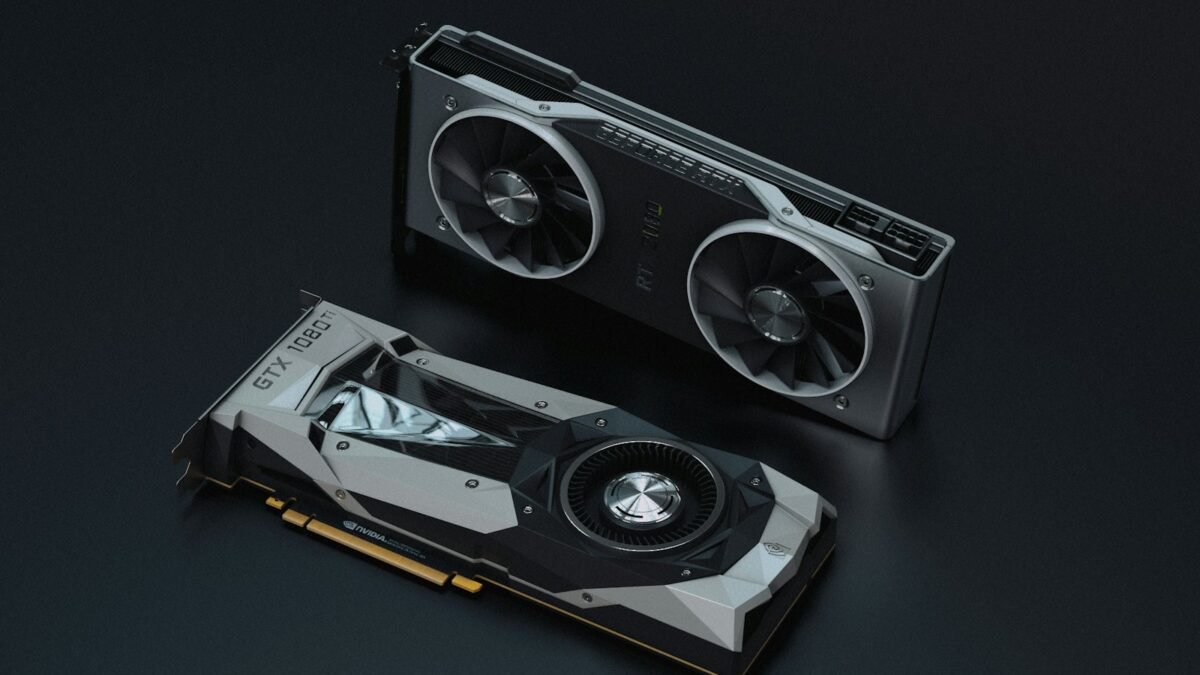
Microsoft’s own worked example for this bug check shows nvlddmkm.sys, the NVIDIA display driver, as the responsible module. That is not a coincidence. Display drivers are large, they run partly in kernel mode, and they are updated constantly.
Download the driver from the GPU vendor’s own site rather than letting Device Manager “search automatically”, which only fetches the Windows Update copy. During installation, tick the clean install or factory reset option so the old files are removed instead of upgraded in place.
If crashes survive that, remove the driver properly. Display Driver Uninstaller (DDU) is a third-party tool from Wagnardsoft, not a Microsoft one, and it strips out leftovers a normal uninstall leaves behind. Boot into Safe Mode, run it there, restart, then install the fresh driver. Disconnect the network first so Windows Update cannot push its own version mid-install.
If the crashes started after a driver update, install the previous version instead. Newest is not the same as most stable, and vendors do ship bad releases.
Fix 2: Remove recently installed antivirus
Third-party security suites install kernel-mode filter drivers that sit in the path of file and network operations. When one of those drivers is buggy or fighting another product, 0x3B is a plausible result.
Uninstalling from Settings > Apps frequently leaves the driver behind. Use the vendor’s dedicated removal tool instead, which nearly every major antivirus publishes on its support site. Restart, then run for a day or two. Microsoft Defender switches itself back on automatically once the other product is gone, so you are not left unprotected.
Never run two real-time antivirus products at once. That combination causes stop codes on its own.
Fix 3: Webcam, capture and virtualisation drivers
Open Device Manager and work through Cameras, Imaging devices and Sound, video and game controllers. Right-click the suspect device, choose Disable device, and use the PC normally. If crashes stop, you have your answer.
Under Properties > Driver, Roll Back Driver returns you to the previous version. It is greyed out when Windows has no earlier copy stored, common on a fresh install.
Virtual cameras from streaming and meeting software register as devices too, so remove any you no longer use. Hyper-V, VMware and VirtualBox each install their own kernel drivers, and running more than one hypervisor stack on a machine is a known source of instability. Keep one.
Fix 4: Windows updates, chipset and firmware
Microsoft’s stop code guidance is blunt about this: install the latest cumulative updates, and make sure BIOS and firmware are current. A driver that was fine on last year’s build can start faulting after a feature update.
Check Windows Update > Advanced options > Optional updates, where driver updates that are not pushed automatically tend to sit. Then install your motherboard or laptop vendor’s chipset package. Chipset drivers underpin storage and power management, and stale ones cause failures that look like something else.
Fix 5: When it only happens in one game or app
A stop code tied to one application usually points at something injecting itself into that application. Overlays are the usual suspects: Discord, Steam, Xbox Game Bar, GPU vendor overlays and monitoring tools such as RivaTuner all hook into the graphics pipeline. Turn them off one at a time, or you will not learn which one it was.
Kernel-level anti-cheat drivers deserve the same treatment. Verify the game files, then reinstall the anti-cheat component if the launcher offers that separately.
In browsers, Discord and other Electron apps, switch off hardware acceleration in the app’s own settings. That moves rendering off the GPU driver path and is a quick test of whether graphics is involved.
If a crash leaves the desktop half-alive with a frozen taskbar, you can restart Windows Explorer rather than forcing another reboot.
Fix 6: Driver Verifier, only when nothing is named
Driver Verifier stress-tests drivers and deliberately crashes the machine when one misbehaves. It is the right tool when your dumps name nothing useful, and the wrong tool for anything else. Expect more blue screens, slower performance, and a real chance the PC will not reach the desktop until you switch it off.
Open Command Prompt as administrator and run it against your suspects only, in groups of ten to twenty, never against every driver at once:
verifier /standard /driver suspect1.sys suspect2.sysThe escape hatch matters more than the command. Driver Verifier does not run in Safe Mode, so boot there and clear it:
verifier /resetThat command clears all Driver Verifier settings, and no drivers are checked after the next boot. Set it up before you need it, not during a boot loop.
What does not fix this
sfc /scannowand DISM. Both repair Windows’ own system files. Quick and harmless, so run them, but a third-party driver crash is not a corrupted Windows file and these commands will not touch the driver.- Increasing the page file. A driver dereferencing a null pointer does not care how much virtual memory you gave it.
- Registry cleaners. No stop code is caused by a stale registry key that a cleaner can safely remove.
- Reinstalling Windows first. Without the driver identified, you reinstall Windows, reinstall the same driver, and get the same crash.
If every driver avenue is exhausted, test the memory. Run mdsched.exe for the built-in Windows Memory Diagnostic, and reset any XMP or EXPO profile in firmware to default. Hardware causes roughly one crash in ten, so it belongs near the end of the list.
Quick reference
| Situation | First action |
|---|---|
| Dump names a display driver | Clean reinstall from the vendor’s site, DDU in Safe Mode if needed |
| Dump names a security product driver | Vendor removal tool, not Settings > Apps |
Dump names only ntoskrnl.exe | Look further down STACK_TEXT, do not blame the kernel |
| Minidump folder is empty | Enable Automatic memory dump, wait for the next crash |
| One app only | Disable overlays and hardware acceleration in that app |
| Nothing named at all | Driver Verifier on suspects, then memory testing |
Common questions
What causes SYSTEM_SERVICE_EXCEPTION most often?
Faulty drivers. Microsoft attributes about 70% of all Windows stop errors to third-party driver code and 10% to hardware. For bug check 0x3B specifically, graphics drivers lead, followed by third-party antivirus filter drivers, webcam and capture drivers, and virtualisation software.
Where is the minidump file stored?
Windows saves small memory dumps to %SystemRoot%Minidump, normally C:WindowsMinidump. If that folder is missing or empty, dump writing is disabled. Open Advanced system settings, then Startup and Recovery, and set Write debugging information to Automatic memory dump before the next crash.
Is SYSTEM_SERVICE_EXCEPTION caused by bad RAM?
Occasionally, but it is not the first thing to check. Hardware accounts for roughly 10% of stop errors against 70% for drivers. Test memory with mdsched.exe and reset any XMP or EXPO overclock profile only after driver reinstalls and dump analysis have found nothing.
Does sfc /scannow fix SYSTEM_SERVICE_EXCEPTION?
Rarely. System File Checker repairs corrupted Windows system files, and a 0x3B crash is usually a third-party driver fault that SFC cannot see or replace. Run it anyway because it takes minutes and costs nothing, but do not stop troubleshooting when it reports no problems.
Should I use DDU to remove my graphics driver?
Only after a normal clean reinstall has failed. Display Driver Uninstaller is a third-party tool, not a Microsoft one, and it removes leftovers a standard uninstall misses. Run it in Safe Mode, restart, then install a freshly downloaded driver with the network disconnected.
Do not change a single setting until the minidump has named a file. Everything in this article is fast once you know which driver crashed, and a guessing game that can eat days if you skip that step.