Reinstalling Windows 10 comes down to four methods: a repair install that keeps your apps and files, Reset this PC with Keep my files, Reset with Remove everything, or a clean install from a USB stick. The right one depends on whether Windows still boots.
They range from “keeps everything, takes 20 minutes” to “wipes the drive completely.” Most people pick the wrong one, either nuking a machine that only needed a repair, or doing a light repair on a machine that needed a wipe.
Start by working out which one you need. Worth a minute first: check the Windows 11 system requirements against your machine, because a PC that qualifies may be better upgraded than reinstalled.
Which method do you need?
| Your situation | Use this |
|---|---|
| Windows is glitchy but boots; want to keep apps | Repair install |
| Want a fresh Windows but keep personal files | Reset — Keep my files |
| Selling or giving away the PC | Reset — Remove everything |
| Windows won’t boot at all | Clean install from USB |
| Suspected malware or deep corruption | Clean install from USB |
Cloud download vs local reinstall — the actual difference
When you reset Windows, it asks how to get the files. Microsoft’s Reset your PC page presents both options side by side without picking one, and this is the choice that confuses everyone.
Local reinstall rebuilds Windows from the recovery files already on your drive. No download needed. Fast, usually 20–45 minutes. But if those recovery files are themselves damaged, the reset fails or reproduces the same problem.
Cloud download fetches a fresh copy from Microsoft’s servers. Needs about 4 GB of download and a stable connection. Slower, but the files are guaranteed clean, and you get the current build rather than whatever version shipped with the machine.
Which to pick:
- Cloud download if the local reinstall already failed, if you suspect corruption or malware, if the PC came with a very old build, or if you simply have decent internet
- Local reinstall if your connection is slow or metered, or you’re on a laptop away from wifi
One thing worth knowing: cloud download does not preserve manufacturer customisations. On an OEM laptop that means Dell, HP or Lenovo’s bundled drivers and utilities are gone. Some of that is bloatware you’re glad to lose; some of it is the driver for your fingerprint reader. Note your model number before you start.
Method 1: Repair install (keeps everything)
This is the most useful option and the least known. It reinstalls Windows over itself, replacing every system file, while keeping your apps, settings and files. It fixes a huge range of problems without the pain of setting the machine up again.
- Go to Microsoft’s Windows 10 download page
- Download the Media Creation Tool
- Run it, choose Create installation media, select ISO file, save it
- When it’s done, right-click the ISO → Mount
- Open the mounted drive and run setup.exe
- Choose to download updates if offered
- At Ready to install, confirm it says Keep personal files and apps
- Click Install and wait
Takes about an hour. If step 7 doesn’t offer “keep apps,” the ISO version is older than your installed version, download a current one.
Faster alternative on newer builds: Settings → Update & Security → Recovery → under Fix problems using Windows Update, click Reinstall now. Same idea, no ISO required.
Method 2: Reset this PC
Built into Windows, no USB needed.
- Settings → Update & Security → Recovery
- Under Reset this PC, click Get started
- Choose: – Keep my files — removes apps and settings, keeps documents, photos, downloads – Remove everything — wipes it all
- Choose Cloud download or Local reinstall (see above)
- Under Change settings, decide: – Clean data?, only matters if you’re passing the PC on. It overwrites the drive, adding hours – Delete files from all drives? — say No unless you truly want every partition wiped
- Click Reset
Keep my files does still remove all your installed programs. Make a list before you start, you’ll forget half of them.
Method 3: Clean install from USB
The complete option, and the only one available when Windows won’t boot.
Back up first. This erases the drive.
Make the USB:
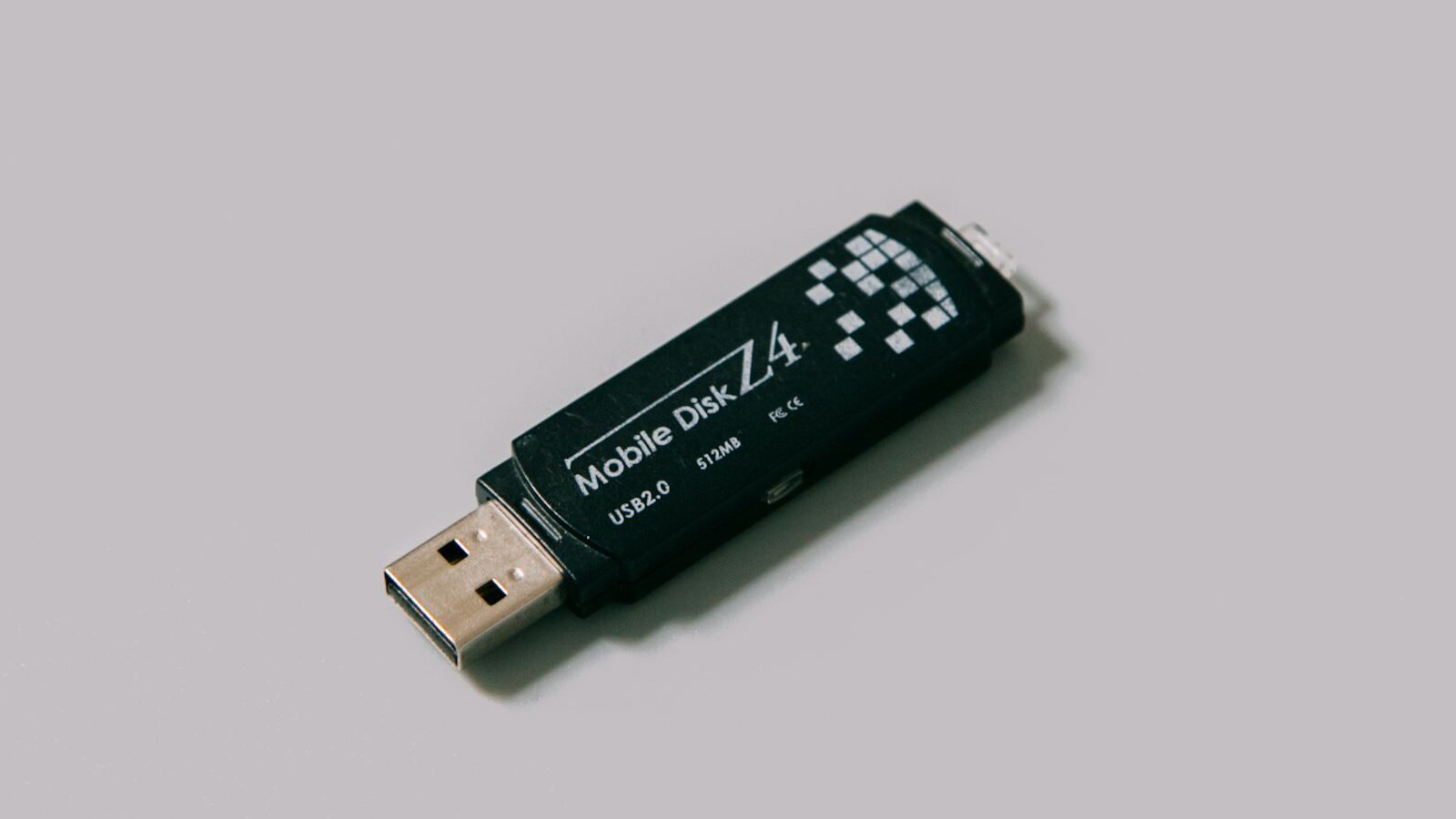
- Get an 8 GB or larger USB drive (it will be wiped)
- Download and run the Media Creation Tool on any working PC
- Choose Create installation media, select USB flash drive
- Wait for it to finish
Install:
- Plug the USB into the target PC
- Power on and tap the boot-menu key, usually
F12,F11,EscorF2 - Choose the USB drive
- Select language, click Install now
- At the product key screen, click I don’t have a product key — Windows reactivates from your digital licence
- Choose your edition (match what you had — Home or Pro)
- Accept the licence, then choose Custom: Install Windows only
- Delete the partitions on the target drive, usually several small ones plus a large one
- Select the resulting Unallocated Space and click Next
Windows installs and restarts a few times. Unplug the USB when it first restarts so it doesn’t boot the installer again.
Method 4: Fresh Start / Reset without bloatware
If you have an OEM laptop and want Windows without the manufacturer’s software, use a clean install from a Microsoft-made USB (Method 3). It installs plain Windows with none of the bundled extras.
The trade-off is drivers. Before you wipe, go to your manufacturer’s support site, look up your model, and download the chipset, network and graphics drivers to a USB stick. Getting the network driver after you’ve wiped the machine and have no internet is a problem people run into constantly.
After any reinstall
- Check activation — Settings → Update & Security → Activation. It should activate automatically within a few minutes if it was activated before
- Windows Update — run it repeatedly until nothing new appears
- Drivers — Device Manager, look for yellow warning icons. Install chipset and graphics drivers from the vendor
- Reinstall your programs — from your list
- Restore your files — from your backup
Will I lose my Windows licence?
No, in almost every case. Since Windows 10, activation is tied to your hardware and stored with Microsoft as a digital licence bound to that device. Reinstall on the same machine and it reactivates by itself.
Two exceptions worth knowing:
- Replacing the motherboard breaks the hardware match. Link your licence to a Microsoft account beforehand (Settings → Activation → Add an account), then use the Troubleshoot activation option afterwards to move it
- Retail vs OEM: a retail key can move to a new PC, an OEM key cannot
Common questions
Does Reset this PC remove viruses?
Usually, but not always. Reset this PC with Keep my files leaves personal files untouched, so infected files sitting there survive the reset. Remove everything paired with a cloud download is much safer. For a serious infection, a clean install from a USB stick is the only genuinely thorough option.
How long does it take?
Reinstalling Windows 10 takes about an hour for a repair install. A reset with local reinstall runs 20–45 minutes. A reset with cloud download adds your download time on top. A clean install takes 20–30 minutes on an SSD, plus driver and update time afterwards.
Do I need my product key?
No. Windows 10 reinstalls without one on a PC that was already activated. Click I don’t have a product key at the setup prompt and carry on. The digital licence stored against your hardware reactivates the machine automatically, usually within a few minutes of reaching the desktop.
Can I still get Windows 10 in 2026?
Yes. Microsoft’s Media Creation Tool and ISO downloads are still available. But Windows 10 lost support on 14 October 2025, so there are no more security patches. Reinstalling puts you back on an unpatched OS. If the hardware qualifies, the Windows 11 Installation Assistant upgrades in place instead.
Reset failed with “There was a problem resetting your PC.”
That error almost always means the recovery files stored on the drive are damaged, so the local reinstall has nothing clean to rebuild from. Run Reset this PC again and choose Cloud download instead. If that also fails, fall back to a clean install from a USB stick.
Does reinstalling improve performance?
Reinstalling Windows 10 clears out accumulated startup programs and background services, so a machine that has slowed down over years genuinely does feel quicker afterwards. It fixes nothing hardware-related, though. If the PC is slow because it boots from a mechanical hard drive, it needs an SSD.
Try a repair install before a reset. It fixes most Windows problems, takes about an hour, and leaves your apps and settings alone. A reset should be what you do when the repair install doesn’t work, not the first thing you reach for.