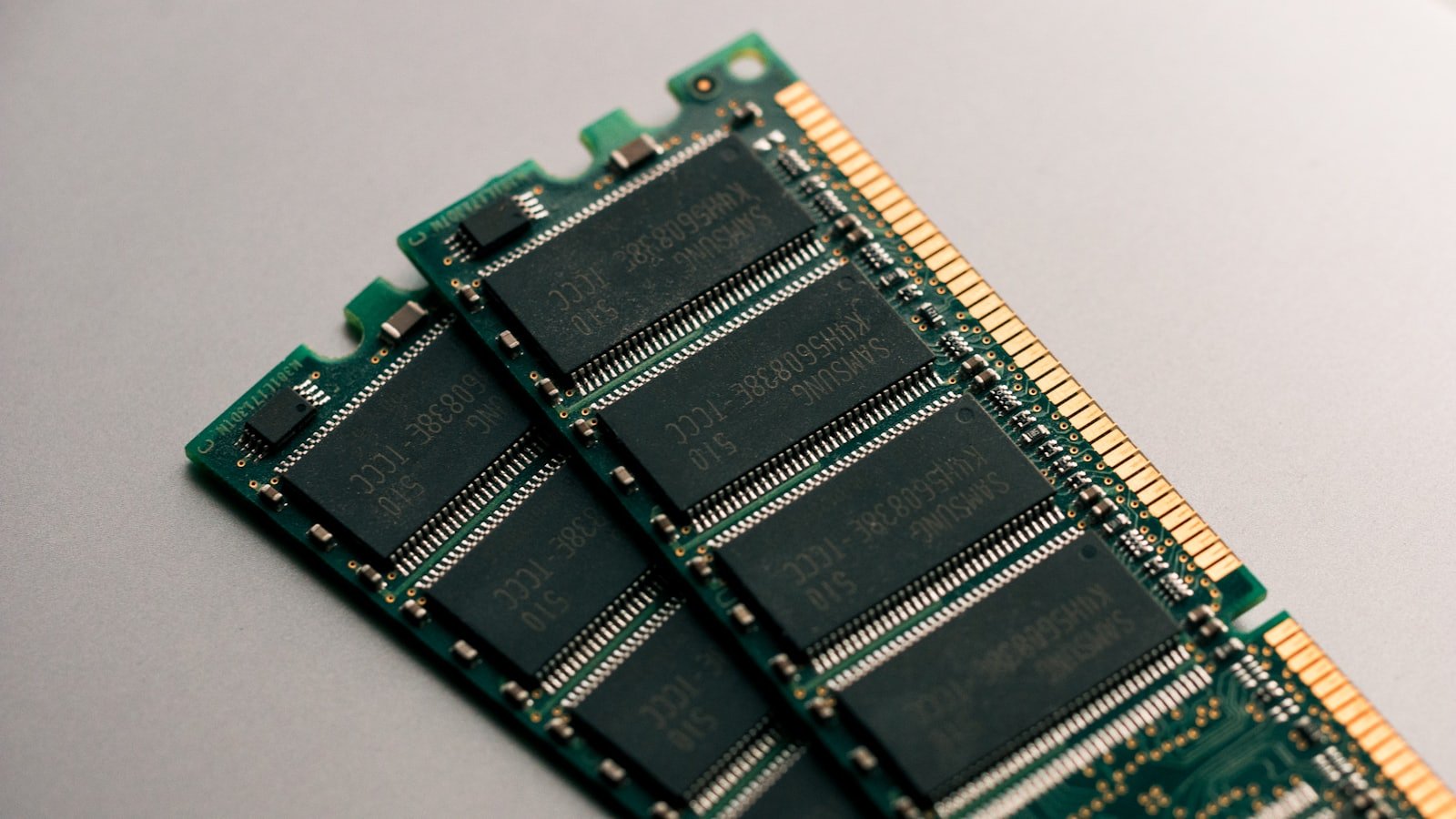
MEMORY_MANAGEMENT is bug check 0x0000001A. It fires when the Windows memory manager finds an internal inconsistency it cannot safely continue from. Faulty RAM is the likeliest single cause, though an XMP profile, a driver or a failing disk produce the identical screen.
That last part trips people up. This is one of the few stop codes where “it’s probably the RAM” is a fair opening guess, so people order memory before testing anything. Often the sticks are fine and the memory profile in the BIOS was never stable.
What the code is actually reporting
Microsoft’s reference is blunt: it says “a severe memory management error occurred” and little else. The memory manager tracks page table entries, page frame numbers and working set lists. When one of those structures contains something that cannot be true, Windows stops rather than write corrupted data to disk.
The bug check carries four parameters, and the first names the specific violation. Microsoft’s parameter table for 0x1A lists dozens, several flagged as probably hardware. Parameter 1 of 0x403 means the page table and page frame numbers are out of sync, which Microsoft notes is probably a hardware fault, particularly when parameters 3 and 4 differ by only one bit. A single flipped bit is the signature of bad memory, not bad code.
The parameters are not on the blue screen. They are in the crash dump. Minidumps land in C:WindowsMinidump, and a free reader such as BlueScreenView from NirSoft shows the parameter values and the driver at the top of the stack without any debugger setup.
Note whether the stop code changes between crashes. A machine that throws 0x1A one day and something unrelated the next is a different problem from one that throws 0x1A every time, so read every Windows stop code and what it means before settling on a culprit.
Work out which situation you’re in first
Do not change anything until you can place yourself in one of these rows.
| What you’re seeing | Most likely cause | Test this first |
|---|---|---|
| Crashes began after enabling XMP or EXPO, or after a BIOS update | Unstable memory profile | Set memory to default speed |
| Crashes began right after adding, moving or upgrading RAM | Seating, slot, or a mismatched kit | Reseat, then test one stick |
| Random crashes, several different stop codes, no pattern | Failing RAM | MemTest86 from USB |
| Crashes only in games or under sustained GPU load | Display driver | Clean reinstall of the GPU driver |
| Crashes alongside file corruption, slow boots or chkdsk errors | Disk | chkdsk and a SMART check |
| Crashes started the day a driver or Windows update installed | Software | Roll back that change |
Fix 1: set memory back to its default speed
XMP on Intel platforms and EXPO on AMD are stored overclock profiles written onto the memory module. Turning one on runs the kit faster than the CPU’s memory controller is guaranteed to handle. It usually works. When it doesn’t, it produces exactly this kind of crash: intermittent, unpredictable, no obvious trigger.
PassMark’s guidance for MemTest86 notes that some memory errors only appear when timings are set too aggressively in the BIOS, and recommends trying standard non-XMP timings before concluding a module is dead.
- Restart and press
DelorF2during boot to enter BIOS/UEFI (the key varies by manufacturer) - Find the memory profile setting, labelled XMP, EXPO, DOCP or A-XMP
- Set it to Disabled or Auto
- Save and exit
Your RAM now runs at its standard base speed, which is slower and does not matter for troubleshooting. Use the machine normally for several days. If the crashes stop, the profile was the problem, and the fix is to leave it off or loosen the settings manually. Do the same with any CPU or GPU overclock.
Fix 2: run Windows Memory Diagnostic, but don’t trust a pass
Windows has a built-in memory test. Press Win + R and run:
mdsched.exeChoose to restart and check for problems. The test runs before Windows loads and reports afterwards. Results are written to Event Viewer under Windows Logs → System, filed under the memory diagnostics results source.
Treat a failure here as conclusive and a pass as almost meaningless. The tool runs a limited set of patterns for a short time, and weak cells often fail only at temperature or after hours of load. Plenty of genuinely bad RAM passes this test.
Fix 3: MemTest86 from a USB stick is the real test
Download MemTest86 from PassMark, write it to a USB drive with the included imaging tool, and boot from it. Running outside Windows, it can test memory that Windows would otherwise be occupying.
Let it run at least four full passes. Overnight is better. Pass 1 is deliberately shorter than the ones that follow so catastrophic faults show up quickly, which is why results in pass 1 and pass 2 can differ.
Now the part that matters. One error is a failure. There is no error count below which you shrug and carry on, and no “only 3 errors so it’s probably fine”. Memory either holds what you wrote to it or it does not.
One honest qualification: MemTest86 exercises the CPU, caches and motherboard as well as the modules, so an error can come from the overclock or the board rather than the stick. That is why you run it at default memory speed. An error at stock settings means that stick is bad. Replace it.
Fix 4: reseat, then test one stick at a time
Shut down, unplug the power lead, hold the power button for ten seconds to discharge, and touch a bare metal part of the case before handling anything.
Reseat first. Release both clips, pull the module out, and push it back in until both clips snap closed on their own. Partial seating is common after a machine has been moved and looks exactly like dead memory.
Then isolate. Run one stick only, in the slot your motherboard manual specifies for single-module use, and test it. Swap in the next stick and repeat. Also move a known-good stick into the suspect slot: if the error follows the slot rather than the module, the fault is the motherboard.
Fix 5: rule out the display driver
Microsoft’s root-cause analysis of crashes attributes 70% of stop errors to third-party driver code and 10% to hardware. A driver writing outside its allocation corrupts the very structures the memory manager checks, and 0x1A is one way that surfaces.
Graphics drivers are the usual suspects because they move more memory than anything else. Uninstall the current one properly and install a fresh copy from Nvidia, AMD or Intel directly rather than accepting whatever Windows Update offers. If crashes only happen in games or during video encoding, do this before touching the RAM.
Driver Verifier can identify a misbehaving driver, but it is a stress tool that intentionally causes more crashes, and Microsoft’s guidance is to enable it on small groups of suspect drivers rather than everything at once. It cannot run in Safe Mode, which is how you switch it off again if the machine stops booting.
Fix 6: check the disk and the system files
Corrupted system files and a dying drive both produce 0x1A, because paged-out memory lives on the disk. Open Terminal or Command Prompt as administrator:
chkdsk C: /f /rIt will ask to schedule the scan for the next restart. Say yes. Then repair the Windows image and system files, in this order:
DISM /Online /Cleanup-Image /RestoreHealthsfc /scannowDISM must run first because SFC draws its replacement files from the component store that DISM repairs, which is the same system file repair sequence that fixes a whole class of unrelated Windows faults. Finish by checking the drive’s SMART status with CrystalDiskInfo. Anything other than “Good” means back up immediately.
Fix 7: leave virtual memory on system managed
Press Win + R, run sysdm.cpl, then Advanced → Performance Settings → Advanced → Virtual memory → Change.
Tick Automatically manage paging file size for all drives unless you have a specific reason not to. The system commit limit is physical memory plus all page files combined, and hitting it causes freezes and crashes rather than a tidy warning. A page file somebody disabled to “save SSD writes” also stops the crash dump being written, which leaves you diagnosing blind. If the page file sits on a failing drive, move it to a healthy one.
What does not fix this
Enlarging the page file. Virtual memory is not RAM, and adding disk space changes nothing about a memory manager inconsistency. Set it back to system managed for the dump file, not as a cure.
Running sfc /scannow on its own. It repairs system files. It has no effect on a defective memory module, and a clean SFC result is not evidence that your RAM is fine.
Disabling fast startup. It changes how Windows shuts down and resumes. Worth trying if crashes happen specifically during boot, but it is not a general fix for 0x1A despite being recommended as one.
Common questions
Is MEMORY_MANAGEMENT always a RAM problem?
No, though it points that way more strongly than most stop codes. Microsoft flags several 0x1A parameter values as probably hardware faults, but a driver corrupting kernel memory, disk errors and an unstable XMP profile all produce the same bug check. Test the memory before replacing it.
Can I keep using a PC that shows MEMORY_MANAGEMENT?
Back up your files today, then stop. Each crash risks corrupting whatever was being written at that moment, so repeated blue screens gradually damage Windows itself and turn one hardware fault into several software ones. Diagnose it now rather than working around it.
How long should I run MemTest86?
Run a minimum of four complete passes, and overnight if you can. Pass 1 is shorter by design to catch severe faults quickly, so a clean first pass proves little. Marginal memory cells often fail only after the modules have warmed up under sustained testing.
Does increasing virtual memory fix MEMORY_MANAGEMENT?
No. The page file extends the system commit limit, it does not repair a memory manager inconsistency. Leave virtual memory on the system managed setting so that Windows can write a crash dump, then diagnose the actual cause. Never disable the page file entirely while troubleshooting blue screens.
Will reinstalling Windows fix a MEMORY_MANAGEMENT blue screen?
Only if the cause was software. A clean install clears corrupted system files and bad drivers, so it does resolve some cases, but faulty RAM crashes a fresh installation just as readily. Test the memory first, because a Windows reinstall on bad hardware often fails partway through.
Set your memory to its default speed before you buy anything. An unstable XMP or EXPO profile explains a large share of these crashes, it costs nothing to rule out, and every other test you run is more trustworthy once the memory is running at stock.